Sharing inputs between using GlobalDictionary
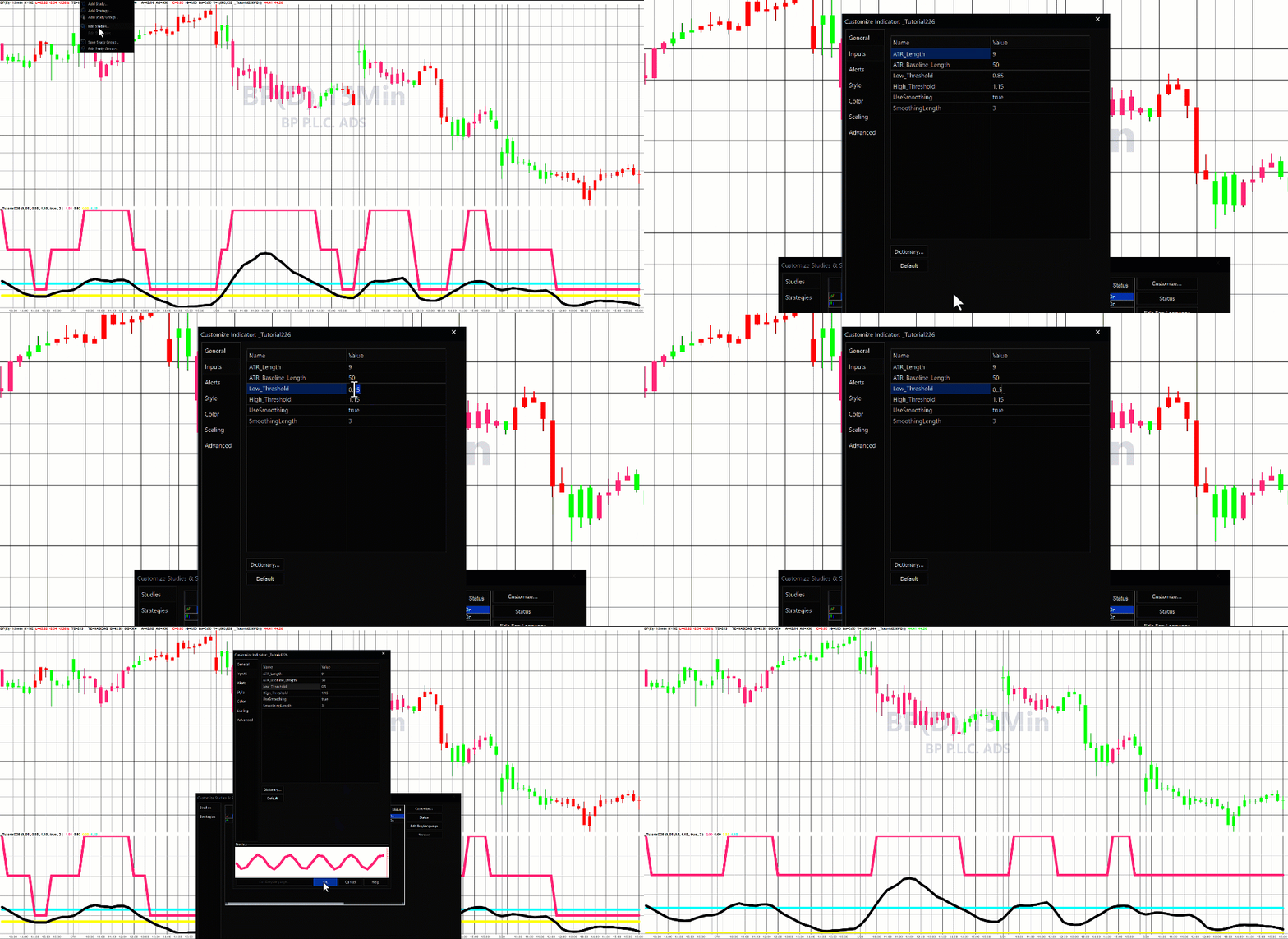
This tutorial looks at how to set the inputs in one EasyLanguage program and have those inputs automatically picked up and used by a second program on the same chart.
This is a common requirement. For example, you may have an indicator and a PaintBar study that are both based on the same underlying calculation. Without a sharing mechanism, you would need to set the inputs separately in each program and keep them manually in sync — which quickly becomes error-prone. The approach shown here solves that problem neatly.
To do this we make use of the GlobalDictionary class, which is part of the elsystem.collections namespace. The GlobalDictionary allows us to store key/value pairs that can be accessed by more than one study on the chart. The first program — the “Send” indicator — writes the input values into the dictionary. The second program — the PaintBar — reads those values back and uses an ItemChanged event to detect when anything has changed, automatically triggering a recalculation.
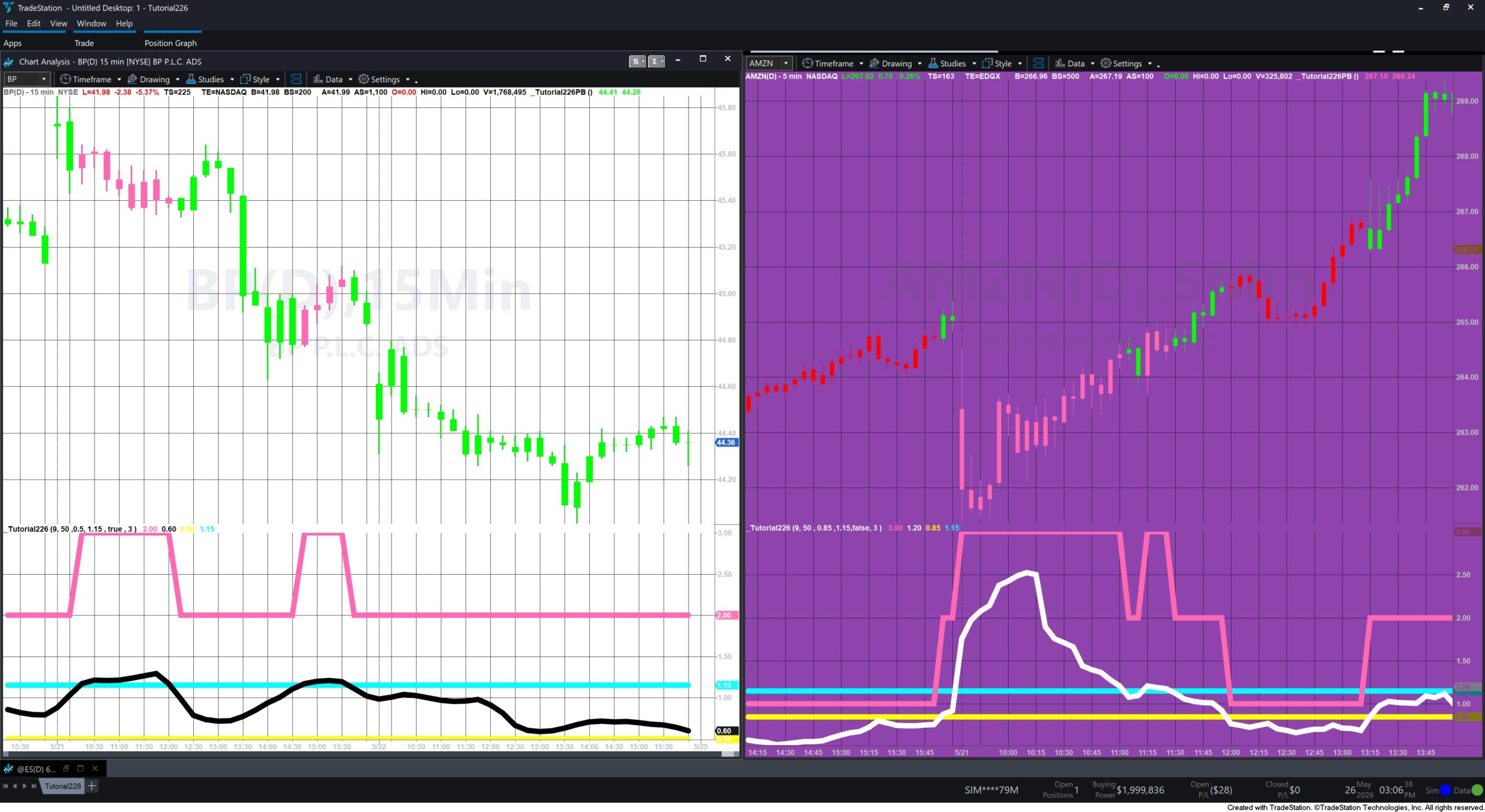
The example programs calculate a volatility regime based on the Average True Range (ATR) relative to a baseline, classifying market conditions as low, normal, or high volatility. The Send indicator plots the regime as a line, while the PaintBar colours the bars accordingly. By the end of this tutorial you will have a reusable pattern that you can adapt for your own multi-study projects.
How _Tutorial226 and _Tutorial226PB work
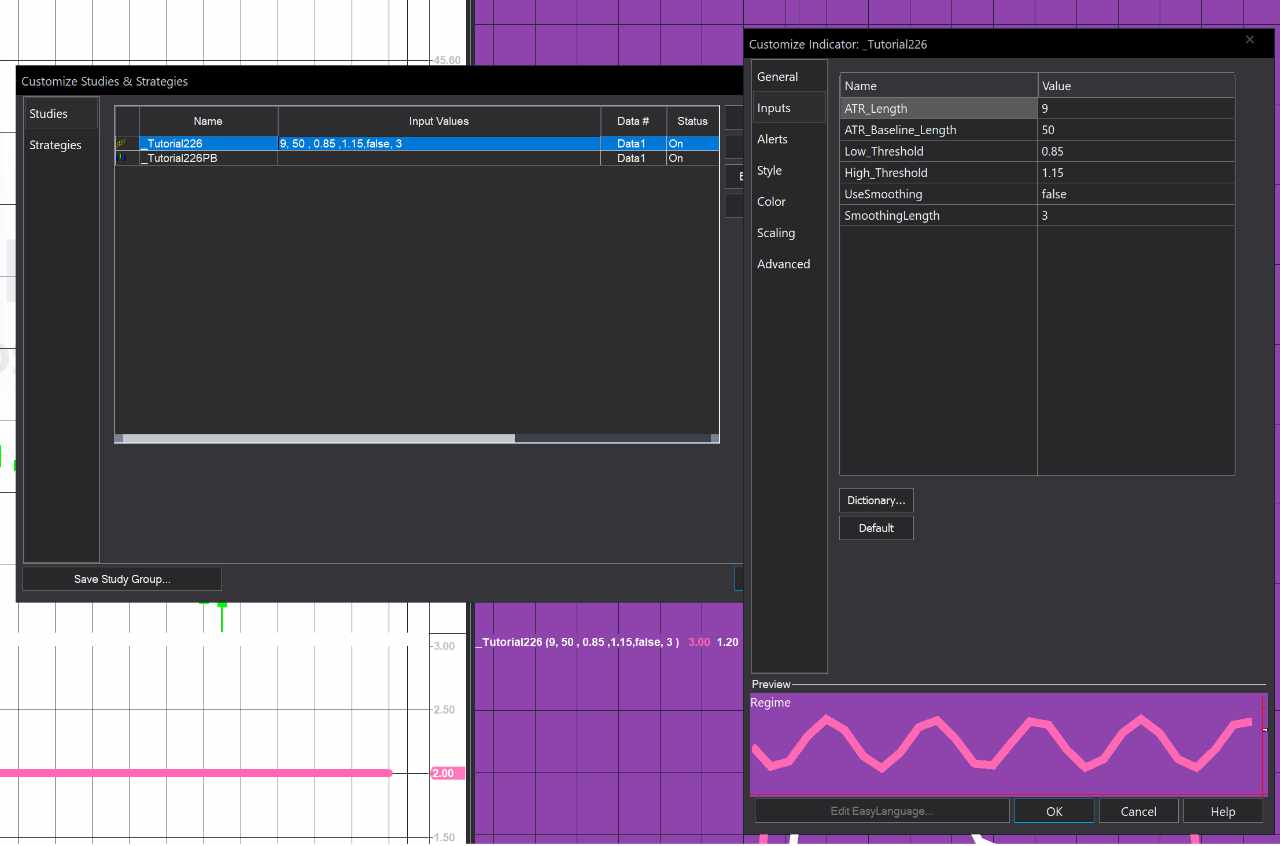
The two programs work together as a pair. The first, _Tutorial226-Send, is an indicator that owns the user inputs. The second, _Tutorial226PB, is a PaintBar study that colours the chart bars based on those inputs. The key idea is that you only ever need to change the inputs in one place — the Send indicator — and the PaintBar will automatically pick up the changes and redraw.
The Send Indicator
When the indicator is first applied to a chart, the Once block runs and does two things. First it creates a GlobalDictionary object called T226Inputs. Then it writes each of the six user inputs into the dictionary as key/value pairs. Notice that each key is prefixed with GetSymbolName — for example GetSymbolName + "ATR_Length" — so that the keys are unique to the symbol on that chart. This is an important detail that prevents the dictionary entries for one symbol from clashing with those of another symbol if the programs are applied to multiple charts in the same workspace.
After the Once block, the indicator runs on every bar, calculating:
- The Average True Range over the user-specified length
- A baseline of that ATR using a longer average
- A volatility ratio — the current ATR divided by the baseline, giving a value centred around 1.0
- An optional smoothed version of that ratio
- A regime classification — 1 for low volatility, 2 for normal, 3 for high — based on where the ratio falls relative to the two thresholds
I covered the exact same calculation in Quick-tip 104.
Four plots are produced: the regime level, the smoothed ratio, and the two threshold lines, giving a clear visual reference in a separate subgraph.
The PaintBar Study
The PaintBar is structured to mirror the Send indicator but receives its parameters from the dictionary rather than from its own inputs. When it is first applied, its Once block runs and does three things:
First it calls GlobalDictionary.Create() to connect to the shared dictionary. It then checks whether each key already exists in the dictionary using Contains — and if so, reads the value back and assigns it to the corresponding local variable. This handles the case where the Send indicator was already applied before the PaintBar.
Second, it registers the ItemChanged_Updated event handler. This is the mechanism that keeps the two programs in sync going forward — whenever the Send indicator updates a value in the dictionary, this event fires in the PaintBar, reads all the values back, and throws a RecalculateException to force the chart to redraw with the new parameters.
Third, it pre-calculates the HotPink colour once using the LegacyColorFromColObject method and stores it in PlotCol. This is more efficient than converting the color string on every bar, and avoids the Print statement inside that method running repeatedly.
The PaintBar then runs the identical volatility calculation on every bar and uses PlotPB to colour each bar — red for low volatility, green for normal, and HotPink for high.
The GetSymbolName Key Prefix — Why It Matters
This is probably the most important design decision in the programs. Because GlobalDictionary can be accessible across studies within a workspace, using plain key names like "ATR_Length" could cause two charts trading different symbols to interfere with each other. By prefixing every key with the symbol name, each chart effectively has its own private namespace within the shared dictionary, so long as multiple charts are not open for the same symbol.
Summary
Together the two programs demonstrate a clean and reusable pattern for inter-study communication in TradeStation EasyLanguage — one program owns the inputs, writes them to a shared dictionary, and the other listens for changes via an event handler and recalculates automatically. The GetSymbolName prefix makes the design robust enough to use across a multi-chart workspace without conflict.
Explanation of tutorial 226
Download the tutorial 226 tutorial programs
If you wish to save yourself some typing, the tutorial programs are available for immediate download by clicking the ‘add to cart’ button below. You may pay using PayPal or a credit card. The price is $19.95
Free download for Gold Pass members
Download the tutorial 226 TradeStation EasyLanguage indicator and paintbar study free for Gold Pass members. If you are a Gold Pass member you can download the tutorial code below, please make sure that you are logged in with your Gold Pass user name and password.  This content is for members only.
TO THE BEST OF MARKPLEX CORPORATION’S KNOWLEDGE, ALL OF THE INFORMATION ON THIS PAGE IS CORRECT, AND IT IS PROVIDED IN THE HOPE THAT IT WILL BE USEFUL. HOWEVER, MARKPLEX CORPORATION ASSUMES NO LIABILITY FOR ANY DAMAGES, DIRECT OR OTHERWISE, RESULTING FROM THE USE OF THIS INFORMATION AND/OR PROGRAM(S) DESCRIBED, AND NO WARRANTY IS MADE REGARDING ITS ACCURACY OR COMPLETENESS. USE OF THIS INFORMATION AND/OR PROGRAMS DESCRIBED IS AT YOUR OWN RISK.
ANY EASYLANGUAGE OR POWERLANGUAGE TRADING STRATEGIES, SIGNALS, STUDIES, INDICATORS, SHOWME STUDIES, PAINTBAR STUDIES, PROBABILITYMAP STUDIES, ACTIVITYBAR STUDIES, FUNCTIONS (AND PARTS THEREOF) AND ASSOCIATED TECHNIQUES REFERRED TO, INCLUDED IN OR ATTACHED TO THIS TUTORIAL OR PROGRAM DESCRIPTION ARE EXAMPLES ONLY, AND HAVE BEEN INCLUDED SOLELY FOR EDUCATIONAL PURPOSES. MARKPLEX CORPORATION. DOES NOT RECOMMEND THAT YOU USE ANY SUCH TRADING STRATEGIES, SIGNALS, STUDIES, INDICATORS, SHOWME STUDIES, PAINTBAR STUDIES, PROBABILITYMAP STUDIES, ACTIVITYBAR STUDIES, FUNCTIONS (OR ANY PARTS THEREOF) OR TECHNIQUES. THE USE OF ANY SUCH TRADING STRATEGIES, SIGNALS, STUDIES, INDICATORS, SHOWME STUDIES, PAINTBAR STUDIES, PROBABILITYMAP STUDIES, ACTIVITYBAR STUDIES, FUNCTIONS AND TECHNIQUES DOES NOT GUARANTEE THAT YOU WILL MAKE PROFITS, INCREASE PROFITS, OR MINIMIZE LOSSES.